
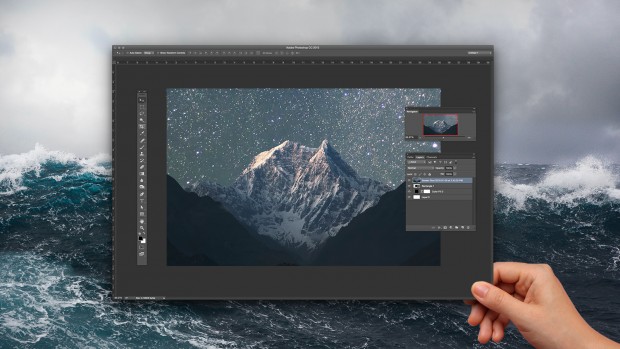
After years of shooting and editing photos, Dave Cross has had ample time to make Photoshop mistakes — and learn from them. But his biggest piece of advice isn't just to be better, but rather, to work smarter. “From a creativity standpoint, working non-destructively, to me, has been a huge bonus,” says Dave in his CreativeLive class, Productivity Tips in Photoshop.
Are you ready for the biggest Photoshop event of the year? Join CreativeLive for Photoshop Week 2019, June 12-14, to learn how to produce professional quality photos and reach your full creative potential. RSVP Today.

What does that exactly mean? According to Dave, the most efficient way to produce great work is to give your photography the ability to change and grow through the editing process. Chiefly, he says, you need to edit photos, but allow the edits, filters, and files to continue to work for you in the future. Too often, says Dave, individuals have developed bad Photoshop mistakes and habits which lead them to change their original file while editing, leaving them with little source material later. Here's how Dave proposes you break the habit:
1. Don’t give up your ability to edit
You never know when you’ll want to come back to an image and make some changes (or steal some of your awesome effects for another photo). Make sure you have the information you need by saving the pre-flattened version of your file as a PSD and not a TIFF – that way you always know where to find the most editable version of an image. The benefit: “I can come back six months from now and go ‘that's pretty cool how did I do that?’ and I can reverse engineer that.”
2. Don’t add vignettes the old way
Once upon a time, when you wanted to add a vignette, your only option was to add a new layer, fill it with black, then take the marquee selection tool and feather it. If you didn’t like the outcome you’d have to start again. Those days are over. If you want to add a vignette effect, do it in a way that is, “much more editable, flexible and reusable.” Within Photoshop, simply use an adjustment layer, darken with curves, make your selection, fill with black on the mask and use the feather slider to your heart’s content.
3. Don’t skimp on masks
“Deleting and erasing is a quick fix that is very permanent that leads you to problems.” Use masks instead – a mask lets you keep every piece of information in a file available for use at another time. It’s simply hidden from view. [Tweet ""From a creativity standpoint, working non-destructively, to me, has been a huge bonus” Dave Cross"]
4. Don’t rely on the history panel
“The history panel is a short term fix that will come back and bite you later.” When you rely on the history panel to keep track of what you’ve done, you are unnecessarily constraining yourself. The history panel is a bit of a one trick pony. It keeps track of your changes “linearly” and if you want to undo a change made at step 3, you’ll have to reverse all the changes you made since step 3. It’s also only relevant for the session you have open. Once you have saved and closed a file, you’ can’t access the information from that session in the history panel again.
5. Don’t delete; convert to smart objects
Smart objects remember their original size which lets you scale down and back up (provided its not bigger than the original) as much as you want without diminishing quality. When you are working with regular pixels, you are stuck with the smallest size you saved that layer as.
Are you ready for the biggest Photoshop event of the year? Join CreativeLive for Photoshop Week 2019, June 12-14, to learn how to produce professional quality photos and reach your full creative potential. RSVP Today.